
TUTORIAL: TiviMate 4K Premium Installation on Amazon Fire Stick
What is the TiviMate Premium IPTV player
Tivimate Premium IPTV Player is by far the best IPTV player for the Amazon Fire Stick. You can’t simply download the TiviMate app to a compatible device and watch TV channels or movies. You need our TiviMate 4K Premium subscription to get all channels, films and series in 4K quality. This installation guide will guide you through the installation of the TiviMate Premium IPTV player and setting up your TiviMate 4K Premium subscription.
TiviMate Premium installation on Amazon Fire TV Stick
This guide is for the installation of TiviMate Premium on Amazon Fire TV Stick.
For the installation manual of TiviMate Premium on an Android device with the original Google Playstore installed such as Android boxes (Nvidia Shield TV, Formuler etc.), Android smart TVs, Google smart TVs and Chromecast with Google TV, click here.
Installing TiviMate Premium IPTV Player and setting up your TiviMate 4K Premium subscription consists of 4 parts on the Amazon Fire TV Stick:
Part 1. : Installation of the free TiviMate IPTV Player
A : Install ‘Downloader’ on the FireStick
B :Change settings on the FireStick
C :Use Downloader to install TiviMate IPTV Player on the FireStick
Part 2. : Setup of your TiviMate 4K Premium subscription
Part 3. : Unlock TiviMate Premium
Part 4. : Change the settings in TiviMate IPTV player to the correct settings
Part 1. Installation of the free TiviMate IPTV Player
Part 1. A: Download ‘Downloader’ on the FireStick
1. Open the FireStick home screen.
2. Go to the Find menu.

3. Select Search at the top.
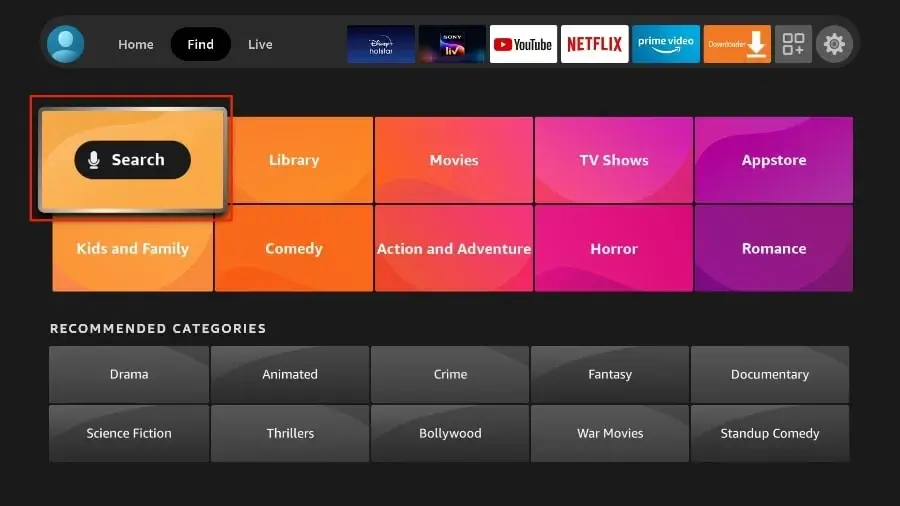
4. It opens a virtual keyboard on your FireStick.

5. Type the word Downloader. Select Downloader when it appears in the suggestions below the keyboard.

6. Select the Downloader app, which you can recognized by the orange background. Click on the Get or Download button on the next screen

It takes a minute to install the Downloader app on the FireStick. Before you open the Downloader app to install TiviMate APK, you need to make some changes in the FireStick settings menu. Otherwise you will receive error messages during installation.
Part 1. B: Change FireStick settings
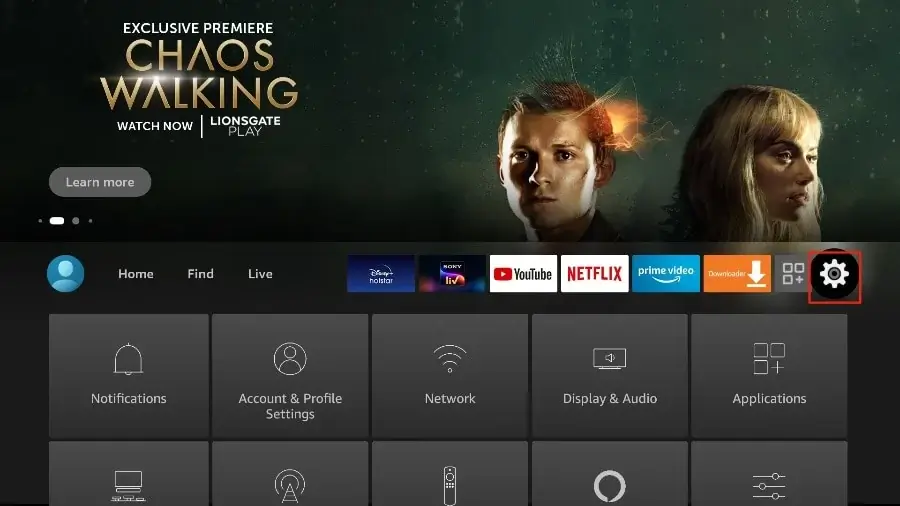
1. Press the home button on your FireStick remote control.
2. Go to settings (gear) on the far right.
2. Scroll down and select My Fire TV.
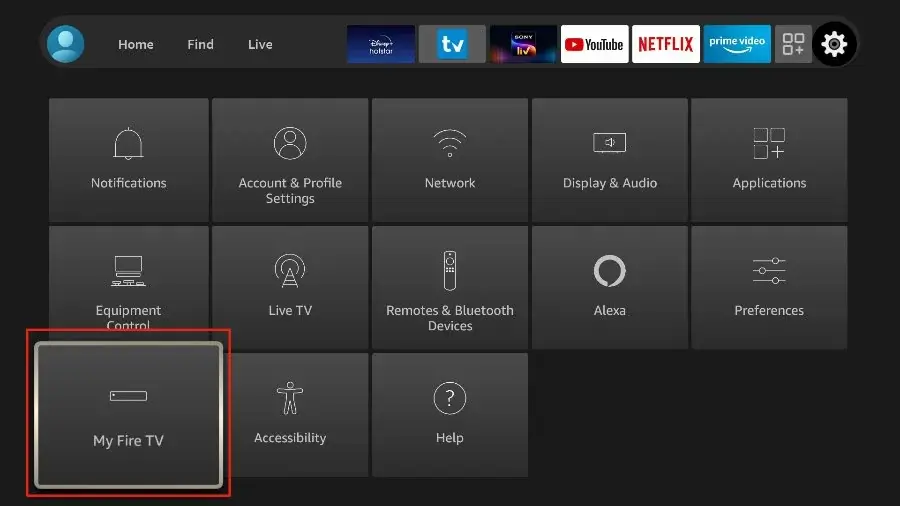
4. When the set of options appears on the next screen, click Developer Options.*
* Note: Developer options have been removed on select devices after the rollout of Fire TV OS update 7.2.8.5.d
You can easily get the developer options by following the steps outlined in: get developer options on the Amazon Firestick

5. Click Install unknow apps

6. Click Downloader to turn it on. By default it is disabled.

Now you can install any app installation file (APK) on the FireStick without any hassle. Follow the steps below to install TiviMate APK on the FireStick using the Downloader app.
Part 1. C: Use Downloader to install TiviMate IPTV Player on FireStick
1. Go to the Apps menu from the Home Screen.

2. Open the Downloader app and select the Enter a URL field on the home screen.

3. A virtual keyboard opens. Type www.tivimatenederland.com/tivi and click Go at the bottom.

4. Downloader will install the latest TiviMate APK on your FireStick.

5. Click Install when prompted.
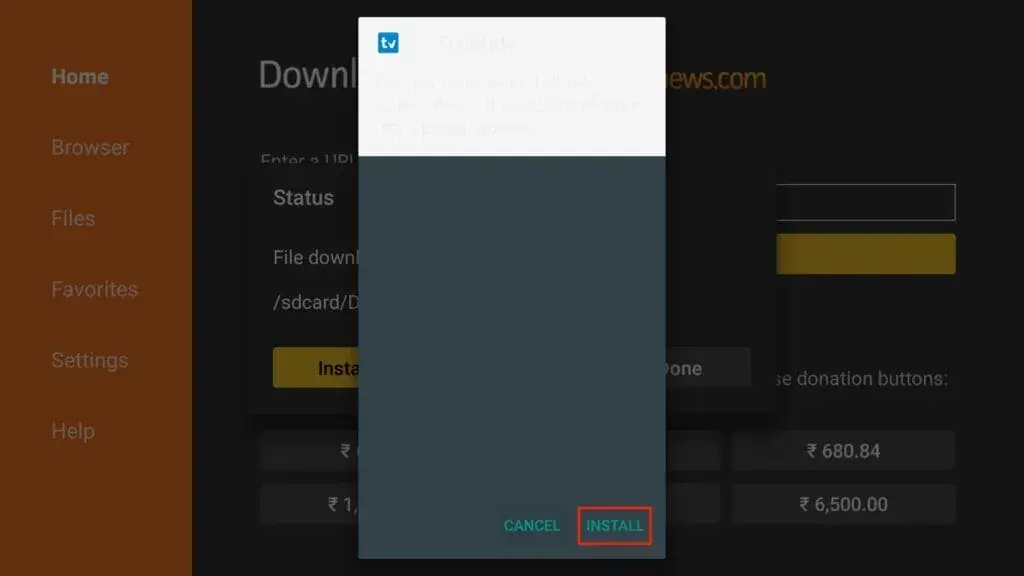
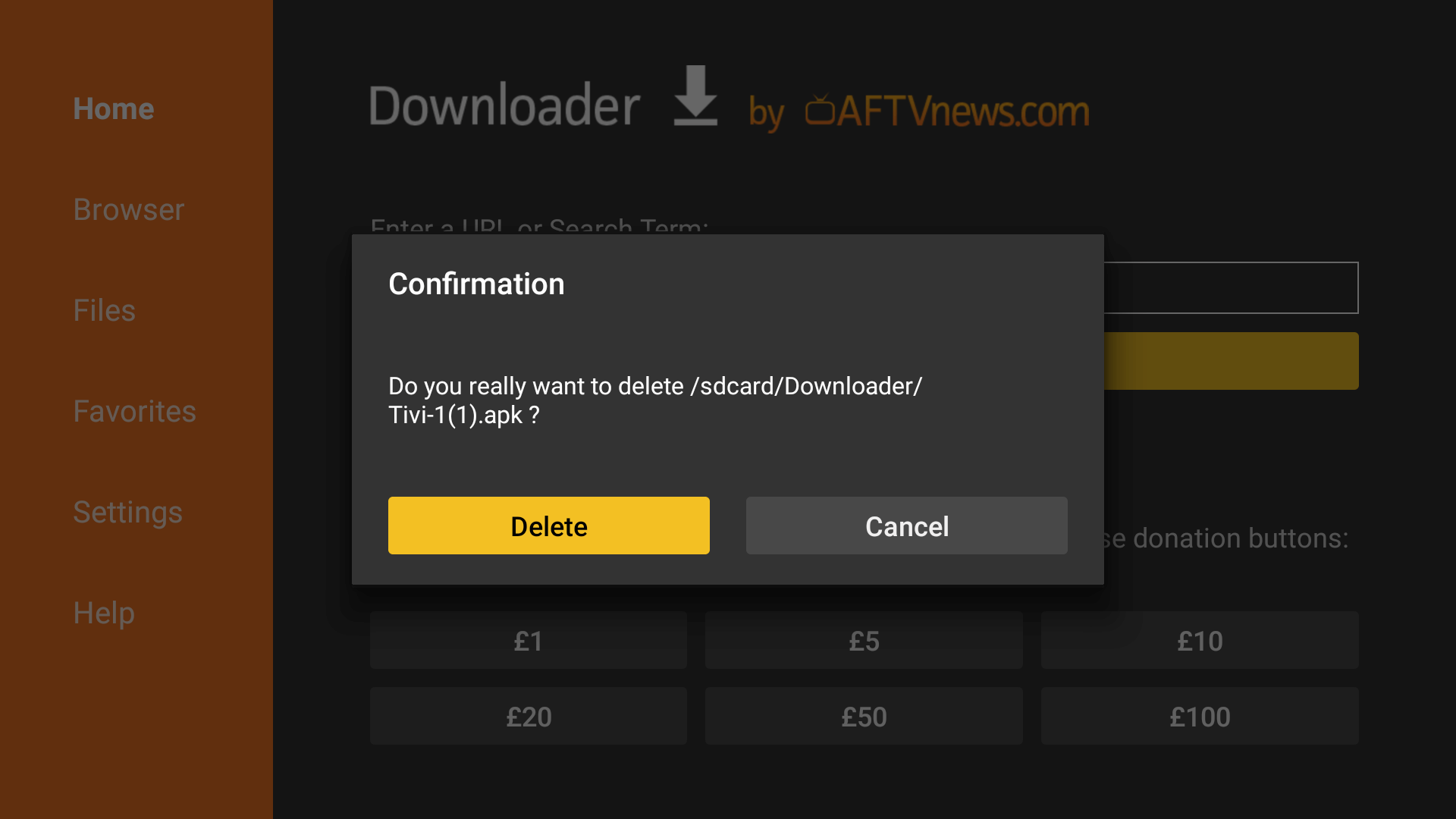
6. After installation, click Uninstall to remove the APK from your device.

7. You may receive a message to confirm, click Delete
You have now successfully installed the TiviMate APK on your FireStick. Now you’re ready to set up our 4K premium service to enjoy hundreds of live channels, movies and TV series on the FireStick.
We recommend placing the TiviMate app directly on the FireStick home screen for easy access. To do this, follow the steps below.
1. Press and hold the home button on your FireStick remote.
2. Select Apps on the next screen.

3. Scroll to TiviMate IPTV Player, but do not select it. Instead of selecting it, press the options button (hamburger image) on your FireStick remote.
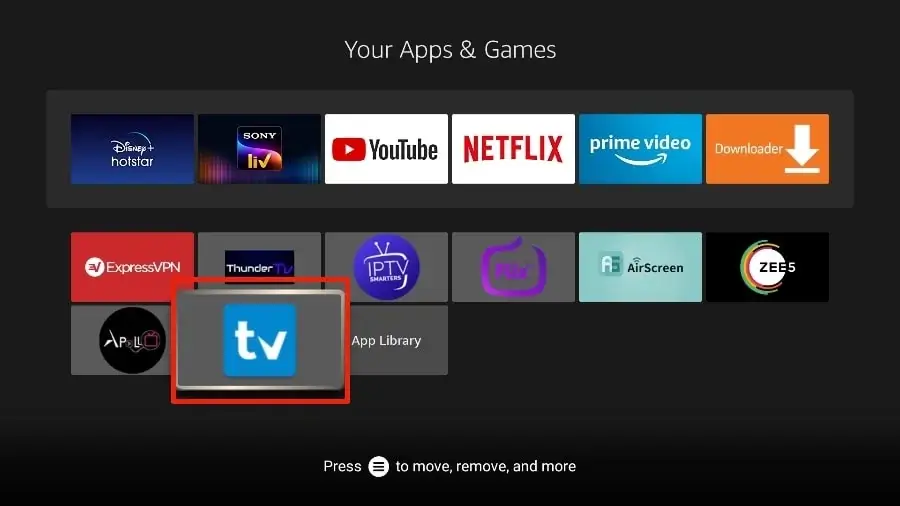
4. You’ll find the Move option on the right. Select it.
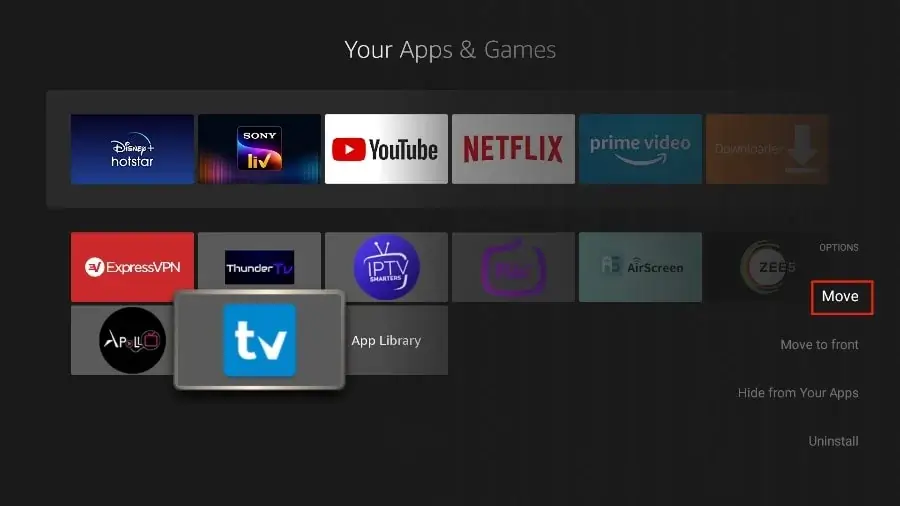
5. Move the TiviMate app to the top row and then press the select button on your remote control to confirm the new location.

6. Now you can easily access TiviMate Player from your FireStick homescreen. There is no need to go through a menu every time.

You have now installed the free version of TiviMate. But without Premium you miss the real quality of the TiviMate app. If you purchased the premium version of the app, you can activate it now. If you have purchased our TiviMate 4K Premium Plus subscription, you can ask us for the login details to activate the premium to unlock all the advanced features and really enjoy the quality of the TiviMate app. (1 Premium TiviMate unlock is included per TiviMate Premium Plus subscription, if you want TiviMate premium on more than 1 device, please contact us).
Part 2: Installing your TiviMate 4K Premium subscription in TiviMate IPTV Player
1. After you have installed the free TiviMate IPTV Player on your Firestick, you can continue with part 2, the installation of your Tivimate 4K premium subscription.
2. Click the TiviMate IPTV Player logo on your device to open TiviMate.
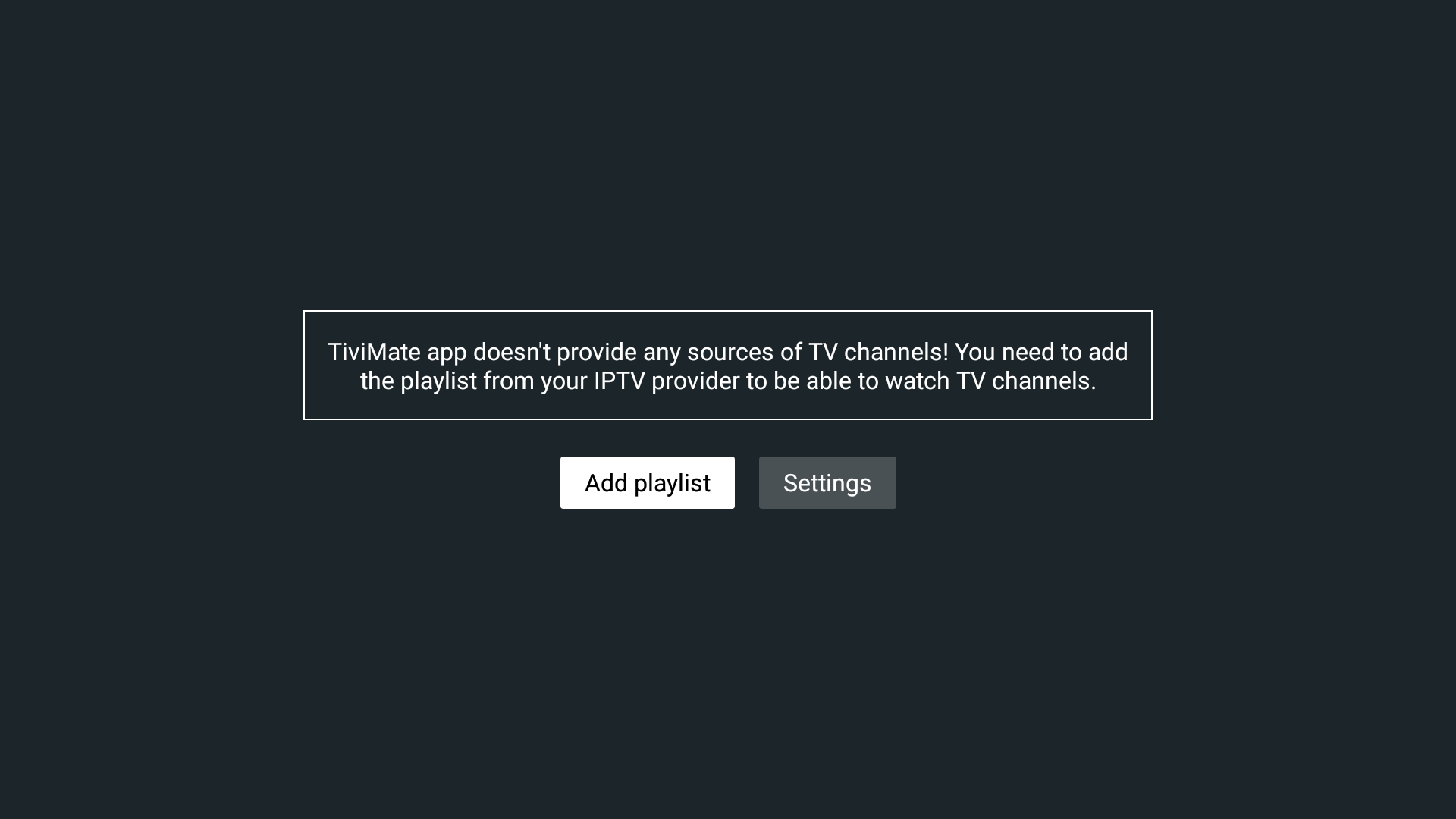
3. Click on Add playlist
Note: If you have already installed another IPTV subscription, go to: Settings: Settings –> Playlist –> Add Playlist
Only in the Premium version of TiviMate you can add more than one playlist.
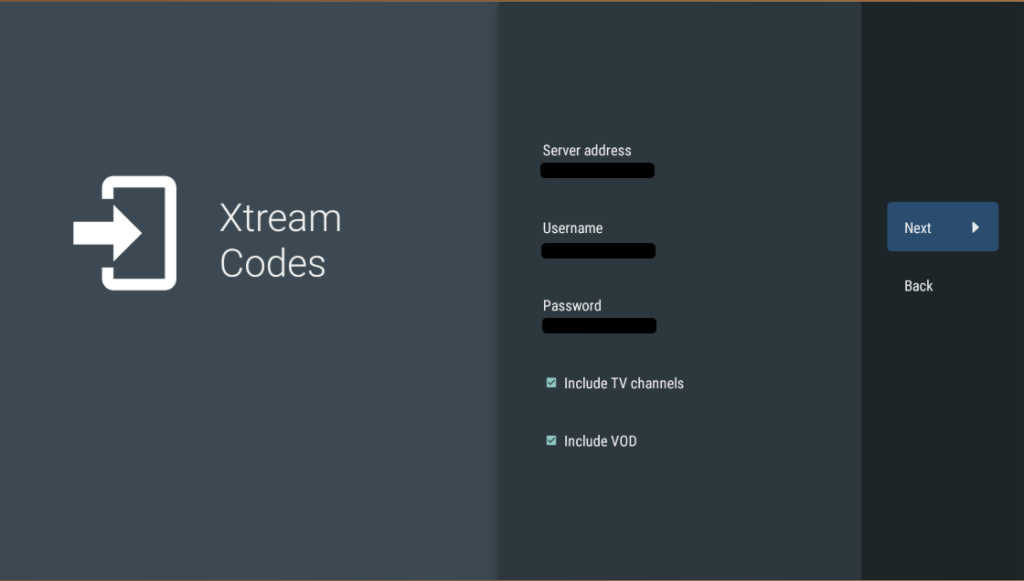
4. Click Xtream Codes

5. Click Server address
Enter the server address (URL) you received by email.
Click next after you have entered the server address.

6. Nadat je op next hebt geklikt verschijnt er een leeg tekstveld om je username in te voeren.
– Enter your username you received by email (consisting of a combination of letters and/or numbers)
– Click next/enter again. An empty text field will appear to enter your password.
– Enter your password you received by email (consisting of a combination of letters and/or numbers).
– Click next/enter
7. Check the box include TV channels and include VOD if they are not already checked by default.
Check again whether you have entered the server address and your username and password correctly.

8. Click Next
9. Processing can take approximately 3 minutes
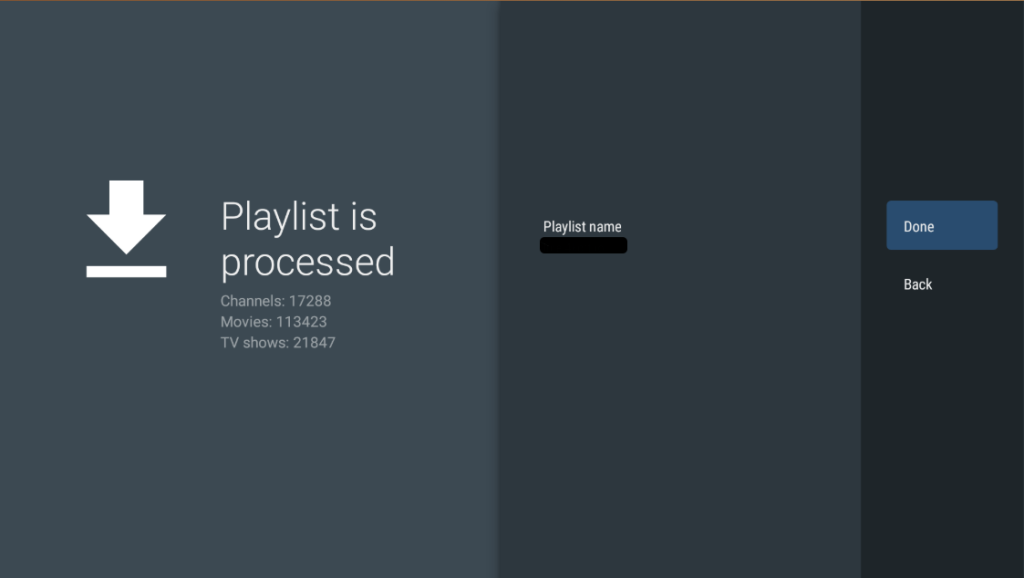
10. After the playlist has been processed, click Done
11. You will need to be patient, this may take about 3 minutes. Please wait…
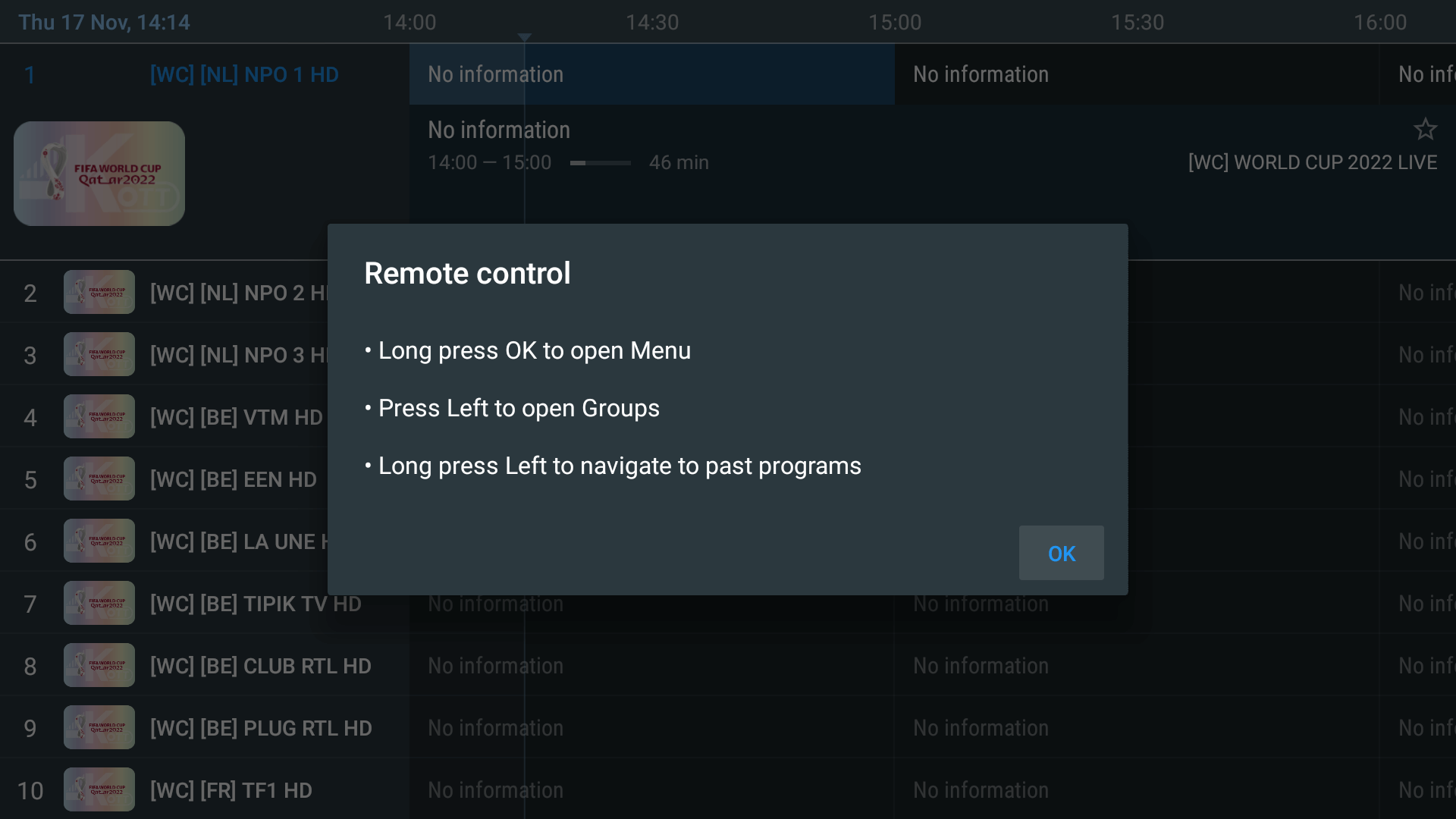
12. You may receive a message with information about the remote control. Click OK.
You’ve completed Part 2, you’ve now installed the free version of TiviMate (Part 1) and set up your TiviMate 4K Premium subscription (Part 2). You can continue with part 3.
Part 3: Activating TiviMate Premium
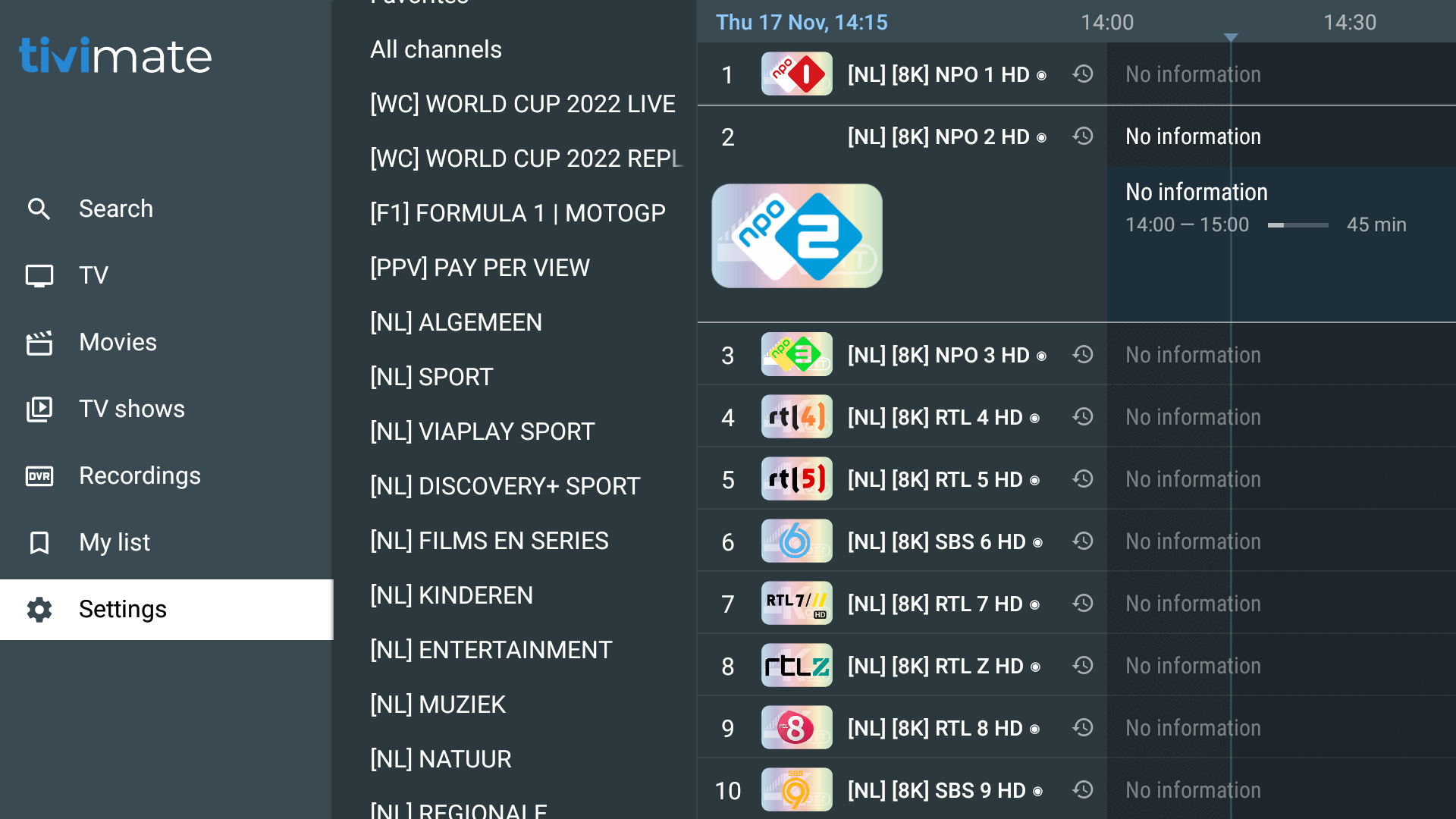
13. Go left to open the main menu on the left and select Settings (the gear icon)
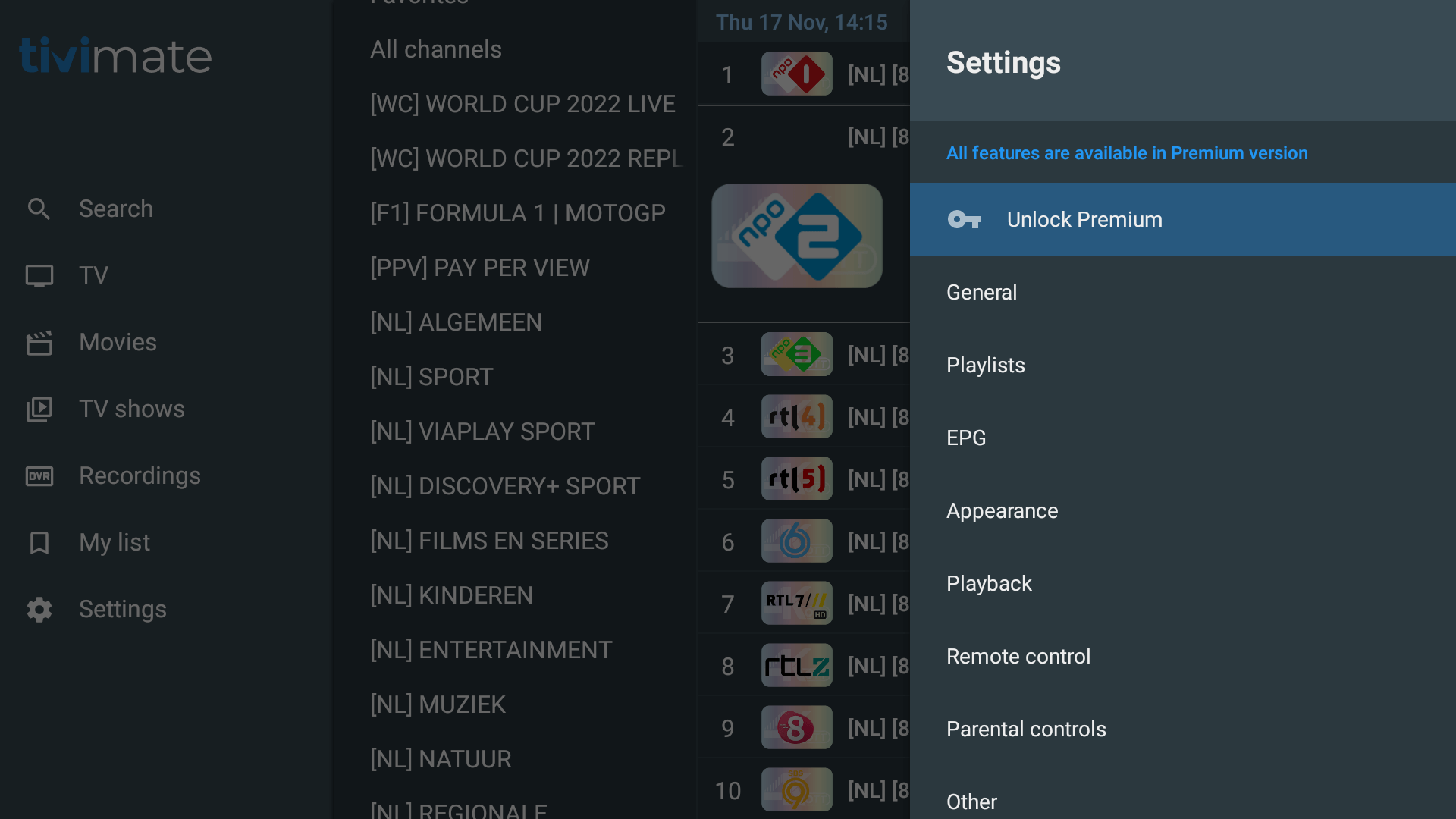
14. Select Unlock Premium
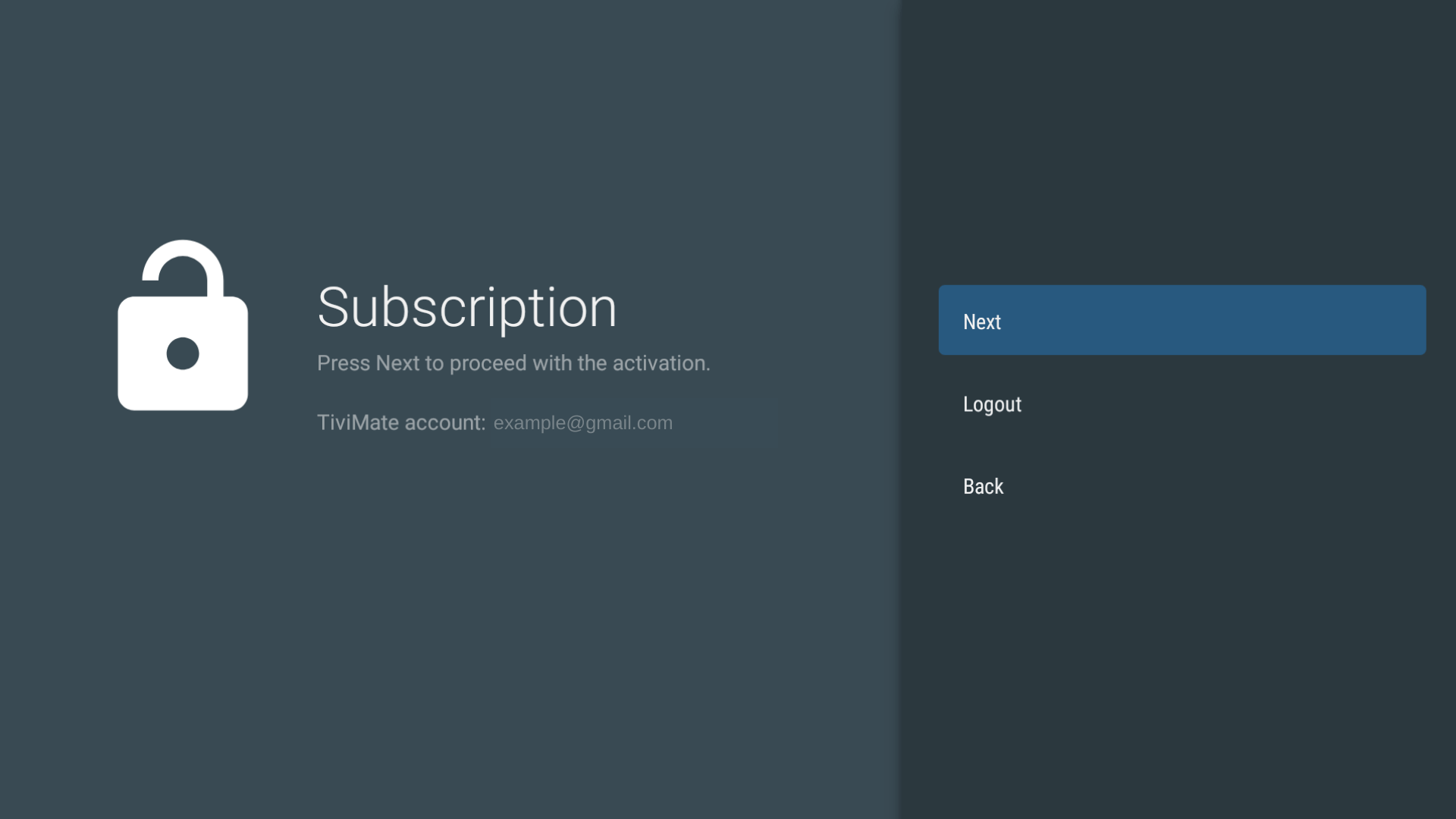
15. View all Premium features and click Next.

16. Click Account

17. Enter the TiviMate premium details.
- If you purchased our TiviMate 4K Premium Plus, please contact us for the unlock details if you have not received it yet.
- TiviMate IPTV Player Premium is included with the TiviMate 4K Premium Plus subscription for 1 device. If you want to have TiviMate IPTV Player Premium on more devices, you can contact us or purchase it from our online store.
- If you purchased your own TiviMate IPTV Player premium activation codes elsewhere, you can enter that information.

18. Click Next to continue with the activation.
19. Important: First change the device name to the username you received for the TiviMate 4K Premium Plus subscription. The username consists of a combination of letters and/or numbers.

20. After you change the device name, you should see your own username (made up of a combination of letters and/or numbers) as the device name.
Important: If you activate more than one device, you can only use your username for your first device name. You must add a number after your username for the other devices you want to activate.
For your second device you must enter your username, followed by -2.
For your third device you must enter your username, followed by -3 and so on.
For example, if you want to activate 3 devices and your username is 2222CD, you must enter the following names as device names:
First device: 2222CD
Second device: 2222CD-2
Third device: 2222CD-3
If you purchased our 4K premium PLUS plan, 1 device activation is included. To activate more devices, please contact us or purchase an additional TiviMate Premium activation code from our online store.
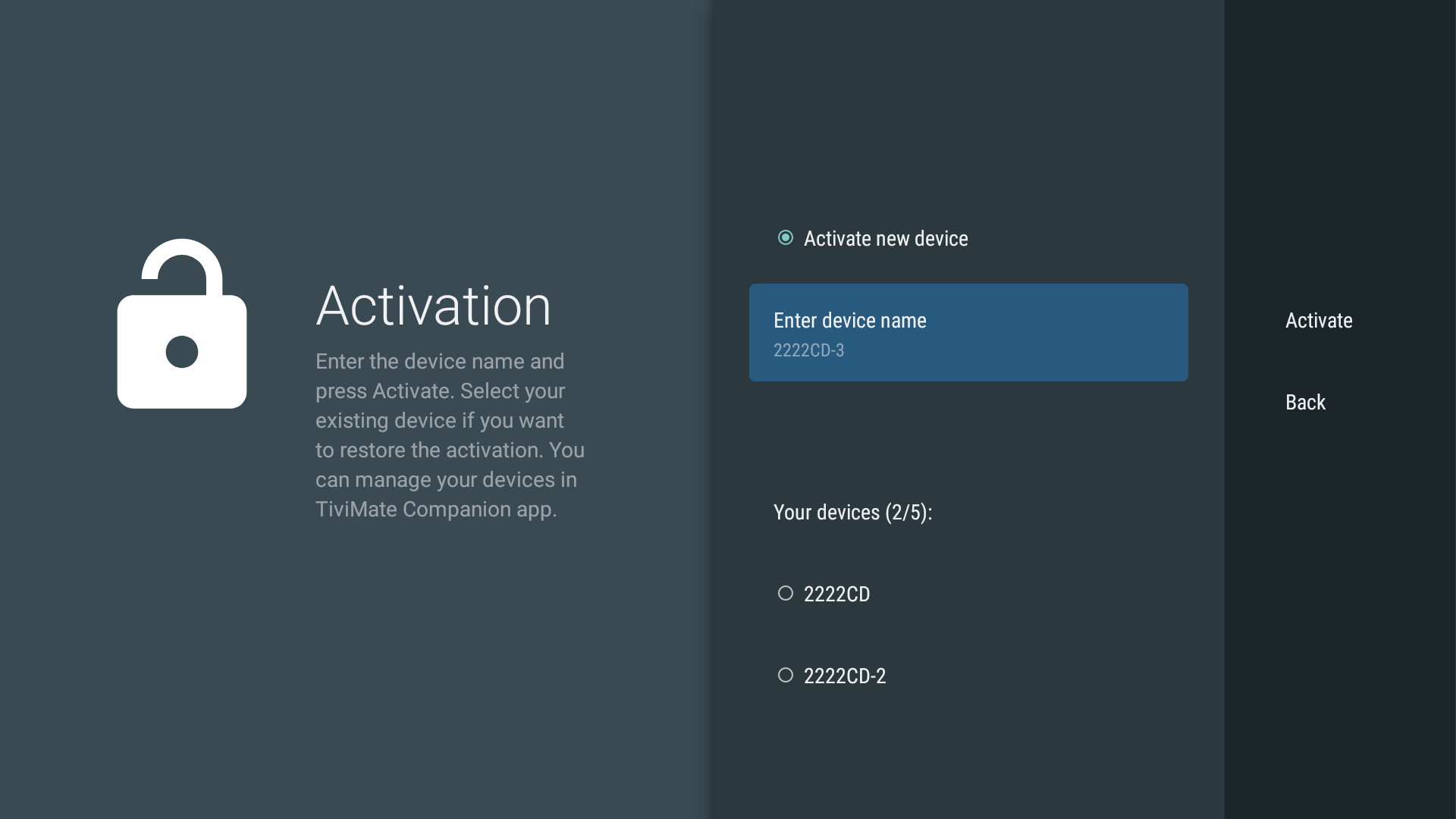
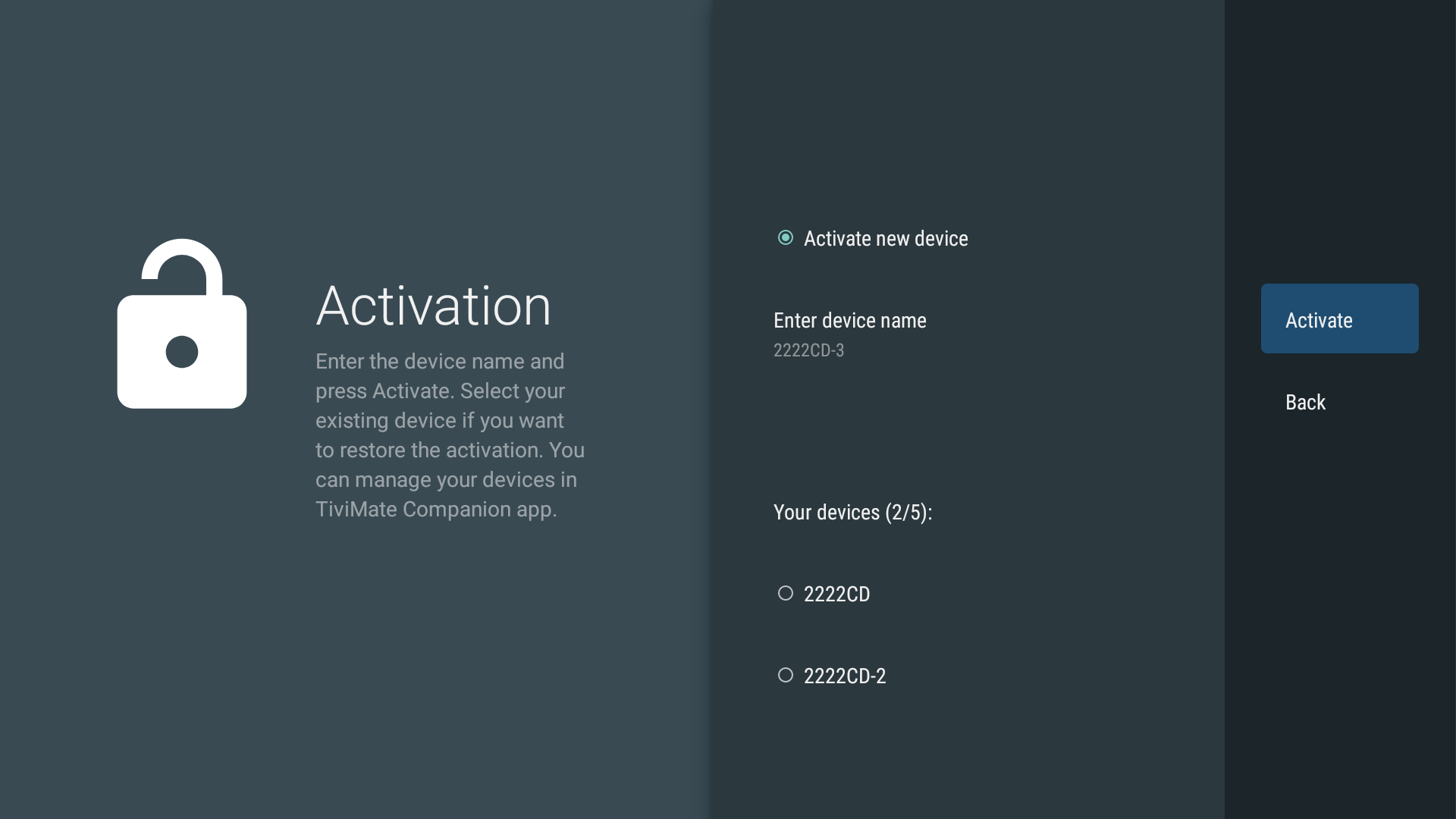
21. After you have entered your device name correctly (your TiviMate 4K Premium username consisting of letters and/or numbers), click Activate.
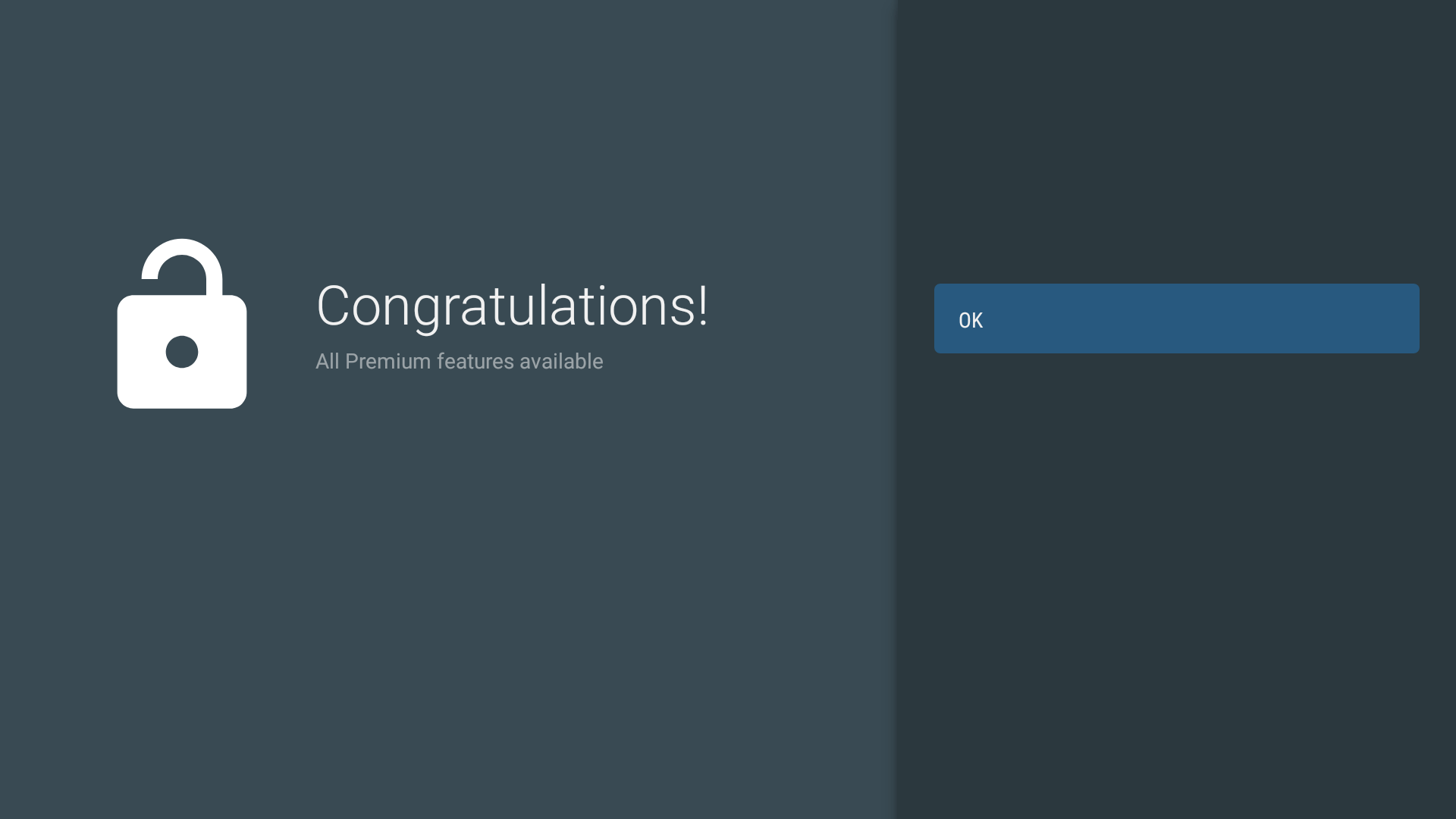
22. Congratulations! All premium features available. Click OK.
You can now move on to part 4 to change the appropriate settings in TiviMate.
Part 4: Change the correct settings in the TiviMate IPTV player
23. Go left to open the main menu on the left and select Settings (the gear icon)

24. Select General

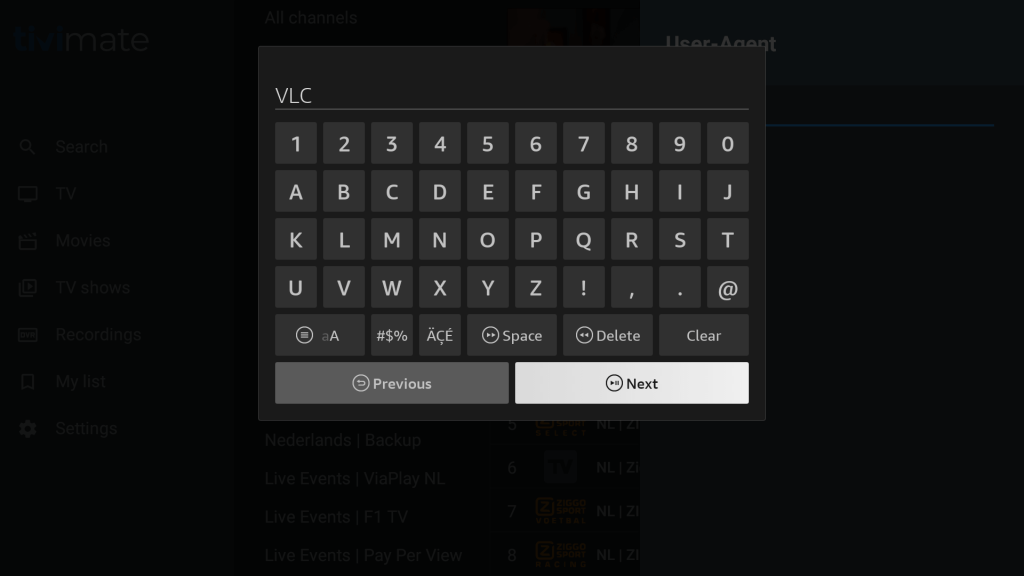
25. Select User-Agent
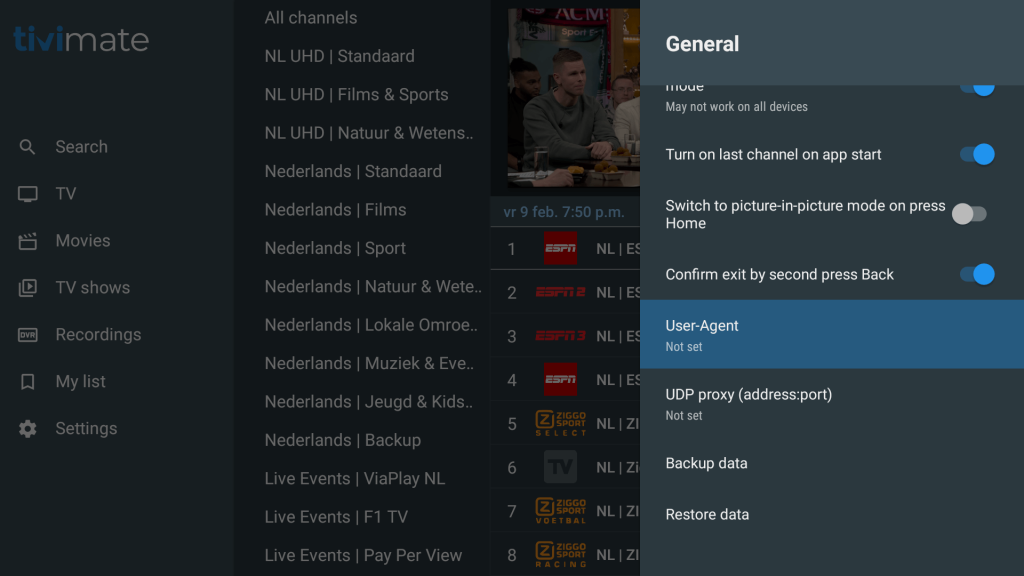
26. An input field will appear, enter VLC and click Next/Enter
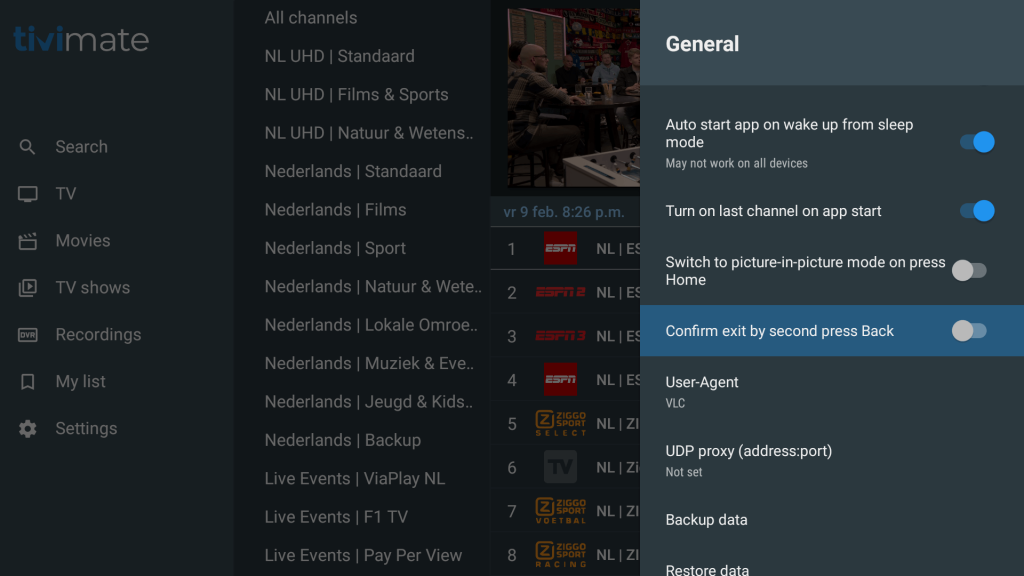
27. Select Confirm exit by second press Back
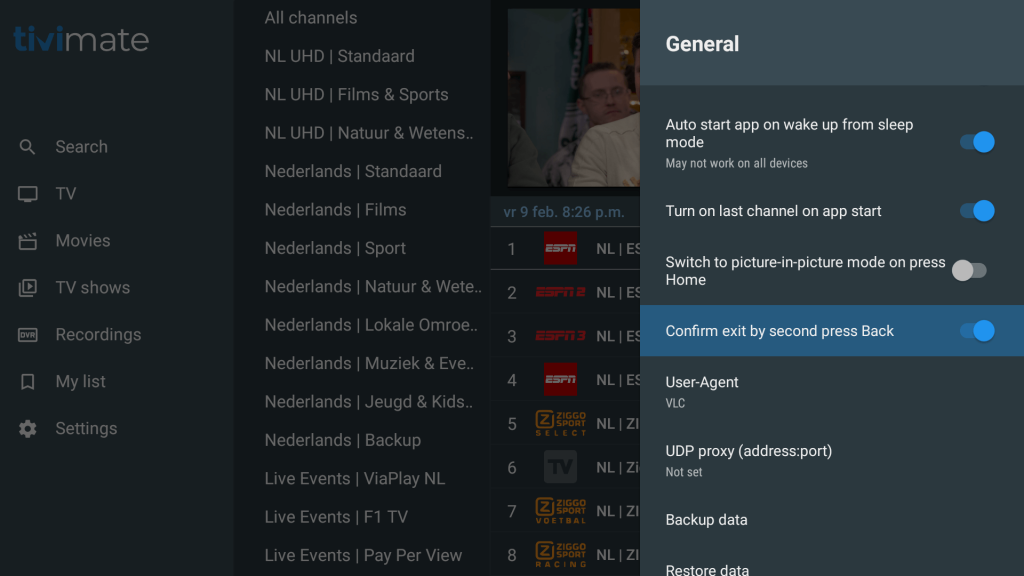
28. Click Confirm exit by second press Back causing the blue button to slide to the right.
29. Click twice the back arrow button on the remote control to return to the main menu.
You can now select what you want to watch, TV channels (TV), Films (Movies) or Series (TV shows).

You have finished installing your TiviMate 4K Premium subscription. Enjoy it