
MANUAL: TiviMate 4K Premium installation on Android device
What is TiviMate IPTV Player Premium
Tivimate IPTV Player Premium is by far the best IPTV player for Android devices. You can’t simply download the TiviMate app to a compatible device and watch TV channels or movies. You need our TiviMate IPTV 4K Premium subscription to watch the TV channels, films and series in 4K quality. This installation guide will guide you through installing the TiviMate Premium player and setting up your TiviMate 4K Premium subscription.
TiviMate Premium installation on Android Box, Android TV and Chromecast with Google TV
This guide is for installing TiviMate IPTV Premium on any Android device with the original Google Playstore installed, such as Android boxes (Nvidia Shield TV etc.), Android smart TVs, Google smart TVs and Chromecast with Google TV.
For the installation manual of TiviMate IPTV Player Premium specifically for the Amazon Firestick, click here.
Installing TiviMate IPTV Player Premium and setting up your TiviMate 4K Premium subscription on an Android device consists of 2 parts:
- Part 1: Install the free TiviMate IPTV Player from Google Playstore
- Part 2: Installing your TiviMate 4K Premium subscription + Activating TiviMate Premium
If you have already unlocked Premium in the TiviMate IPTV Player app, you can start from step 13. of this manual.
Part 1: Installing the Free TiviMate IPTV Player
1. Install TiviMate IPTV Player from the official Google Play Store. Search for TiviMate in the Google Play Store of your Android device and install the TiviMate app on your device.
TiviMate IPTV Player – Google Play Store

If you are unable to install the free TiviMate IPTV player app from the Google Play Store, first follow the following instructions:
Install Tivimate iptv player on Android device via download then continue with Part 2 below.
Part 2: Installing your TiviMate 4K Premium subscription
2. Open TiviMate IPTV Player on your device.

3. Click Settings

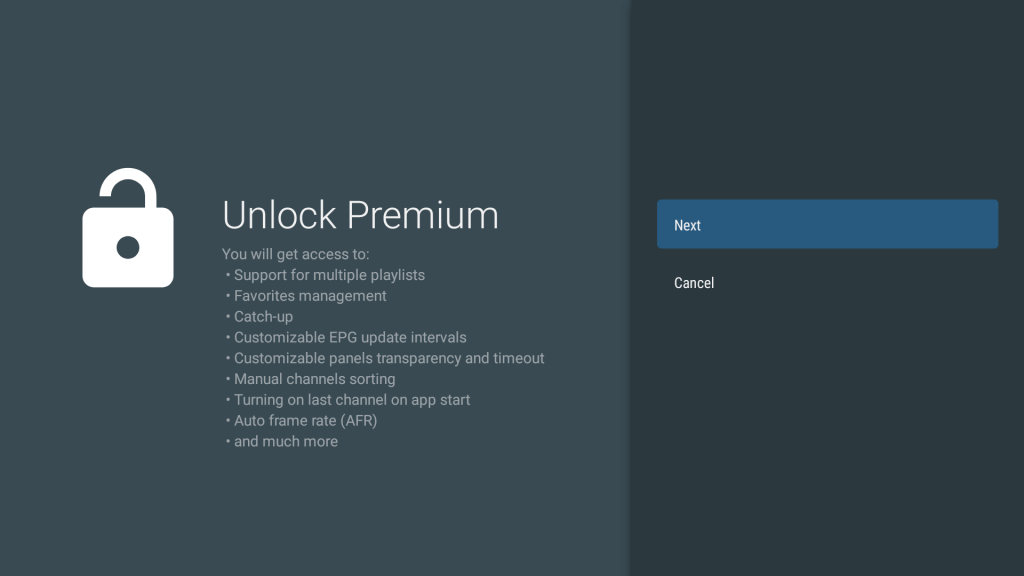
4. Click Unlock Premium

5. Review all Premium features and click Next.
6. Click Account
7. Enter the TiviMate premium details.
- With our TiviMate 4K Premium Plus subscription you get the data to unlock TiviMate Premium. If you have not received the unlock information, you can contact us.
- TiviMate IPTV Player Premium is included with the TiviMate 4K Premium Plus subscription for 1 device. If you want to use TiviMate IPTV Player Premium on more devices, please contact us.
- The standard TiviMate 4K Premium subscription (without Plus) does not include unlocking of the Premium features of the TiviMate IPTV Player app. You must purchase this yourself in the Google Play store if you have not already done so.
- If you have already purchased the TiviMate IPTV Player Premium, you can enter your details.
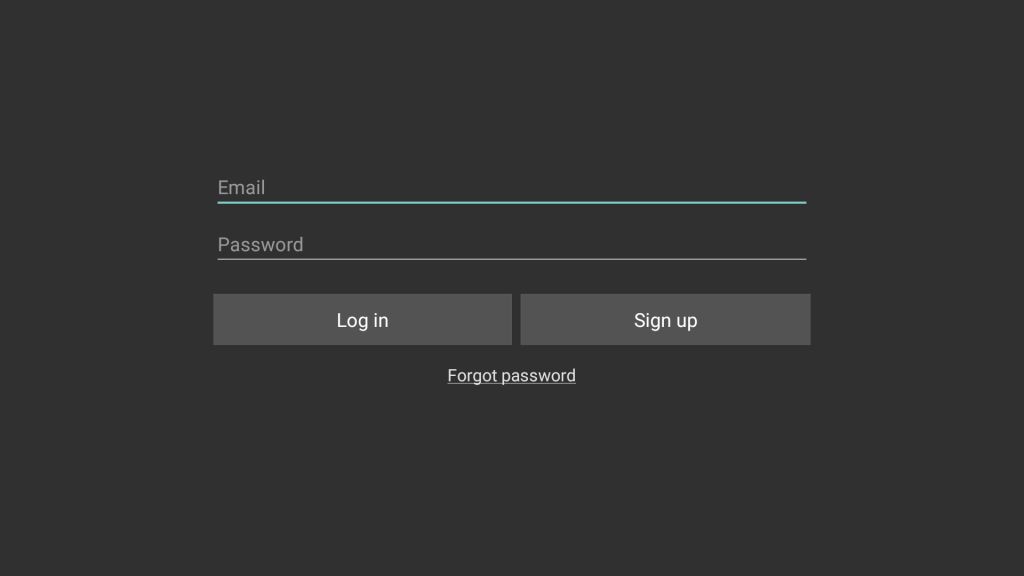
8. Click Next to continue with the activation.

9. Leave ‘Active new device’ checked and click Activate.

10. Congratulations! All premium features are now available. Click OK.
11. Press the back arrow on your remote control once and click on Playlists
12. Click Add Playlist

13. Click Xtream Codes

14. Click Server address
Enter the servers address (URL) you received by email.
Click Next after you have entered the server address.
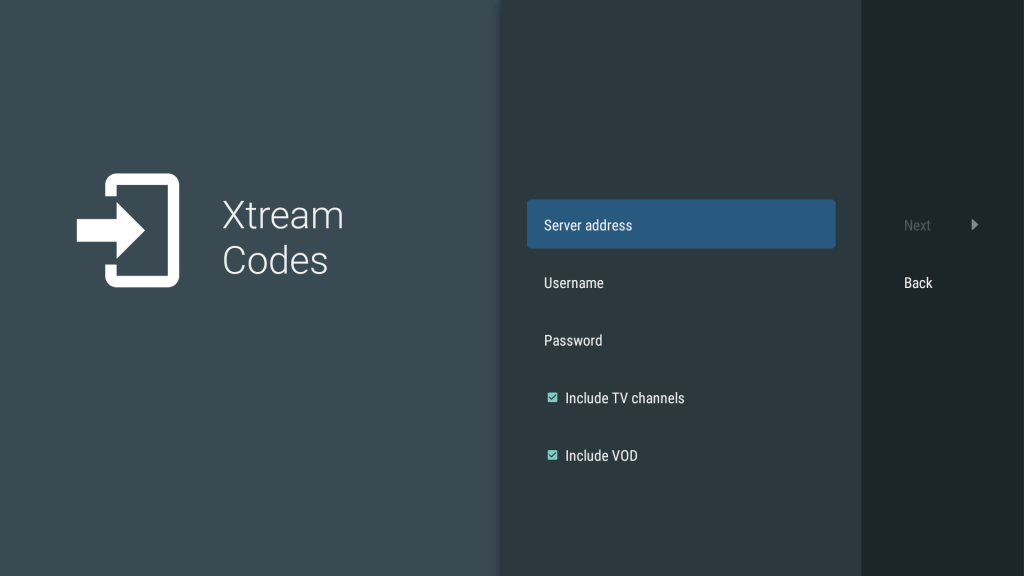
15. After you click on next, an empty text field will appear to enter your username.
- Enter the username you received by email (consists of a combination of letters and/or numbers)
- Click next again (next/enter). An empty text field will appear for you to enter your password.
- Enter the password you received by email (consists of a combination of letters and/or numbers)
- Click next again (next/enter)
16. Check the box include TV channels and include VOD if it is not already checked by default.
Check again whether you have entered the server address and your username and password correctly.

17. Click Next

18. Processing may take approximately 3 minutes
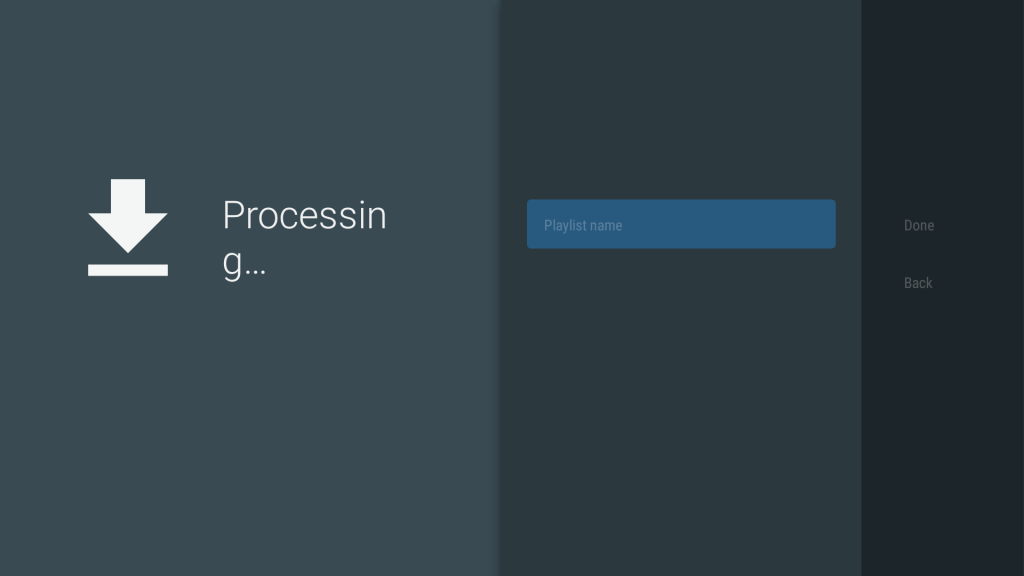
19. After the playlist has been processed, click Done

20. You will need to be patient, this may take about 3 minutes. Please wait…

21. Click twice on the back arrow button of your remote control to enter the main menu of TiviMate.
You may receive a message with information about how to operate the remote control. Click OK.

22. Press back arrow button on your remote control to get to the main menu of TiviMate where you can choose from TV, Films (Movies) or Series (TV shows)

You have finished installing your TiviMate 4K Premium subscription. Enjoy it!